

Share This Article
Last Updated: June 30, 2026
PowerPoint Shortcut Keys
Learning PowerPoint Shortcut Keys is the fastest way to create professional presentation slides saving much of your time. You can use PowerPoint keyboard shortcuts as a student, teacher, businessman, marketer, presenter, etc to make your work efficient. In its place of navigating different menus, you can now create, edit, format and even present slides using PowerPoint shortcut keys by few presses. We present to you the most useful PPT shortcut keys, presentation crosscuts, slide editing shortcuts, and Microsoft PowerPoint productivity tips for the year 2026.
Why Learn PowerPoint Shortcut Keys?
Today’s PowerPoint is used at the meetings, in the classrooms, webinars, & discussions across the world. Knowing the shortcuts can cut down the amount of times you need to do a repetitive action and therefore speed up presentation construction.
Benefits of Using Shortcuts
- Faster slide creation
- Better presentation workflow
- Improved editing speed
- Reduced mouse dependency
- Enhanced productivity
- Professional presentation skills
Most Important PowerPoint Shortcut Keys
Basic PowerPoint Shortcuts
| Shortcut | Function |
| Ctrl + N | New Presentation |
| Ctrl + O | Open Presentation |
| Ctrl + S | Save Presentation |
| Ctrl + P | Print Slides |
| Ctrl + C | Copy |
| Ctrl + X | Cut |
| Ctrl + V | Paste |
| Ctrl + Z | Undo |
| Ctrl + Y | Redo |
| F1 | Help |
Slide Management Shortcuts
| Shortcut | Function |
| Ctrl + M | Insert New Slide |
| Ctrl + D | Duplicate Slide |
| Delete | Remove Slide |
| Ctrl + Shift + D | Duplicate Selected Object |
| Ctrl + Enter | Move to Next Placeholder |
These shortcuts are essential for quickly building presentations.
Text Formatting Shortcuts
| Shortcut | Function |
| Ctrl + B | Bold |
| Ctrl + I | Italic |
| Ctrl + U | Underline |
| Ctrl + E | Center Align |
| Ctrl + L | Left Align |
| Ctrl + R | Right Align |
| Ctrl + Shift + > | Increase Font Size |
| Ctrl + Shift + < | Decrease Font Size |
Slide Editing Shortcuts
Frequently Used Slide Editing Commands
| Shortcut | Function |
| Ctrl + A | Select All |
| Ctrl + F | Find |
| Ctrl + H | Replace |
| Ctrl + G | Group Objects |
| Ctrl + Shift + G | Ungroup Objects |
| F4 | Repeat Last Action |
| Alt + Shift + Left Arrow | Promote Bullet |
| Alt + Shift + Right Arrow | Demote Bullet |
PowerPoint Presentation Mode Shortcuts
When delivering presentations, these shortcuts can make you appear more professional.
| Shortcut | Function |
| F5 | Start Slide Show |
| Shift + F5 | Start From Current Slide |
| Esc | Exit Slide Show |
| N | Next Slide |
| P | Previous Slide |
| B | Black Screen |
| W | White Screen |
| Number + Enter | Jump to Specific Slide |
PowerPoint Productivity Comparison Table
Mouse vs Keyboard Workflow
| Task | Mouse Method | Shortcut Method |
| New Slide | Multiple Clicks | Ctrl + M |
| Duplicate Slide | Right Click Menu | Ctrl + D |
| Start Presentation | Ribbon Navigation | F5 |
| Find Text | Menu Search | Ctrl + F |
| Group Objects | Context Menu | Ctrl + G |
Estimated Efficiency Gain
| User Type | Time Saved |
| Student | 15–20% |
| Teacher | 20–25% |
| Office Professional | 25–35% |
| Presenter | 30–40% |
Printable PowerPoint Shortcut Cheat Sheet
Top 20 Must-Know PPT Shortcuts
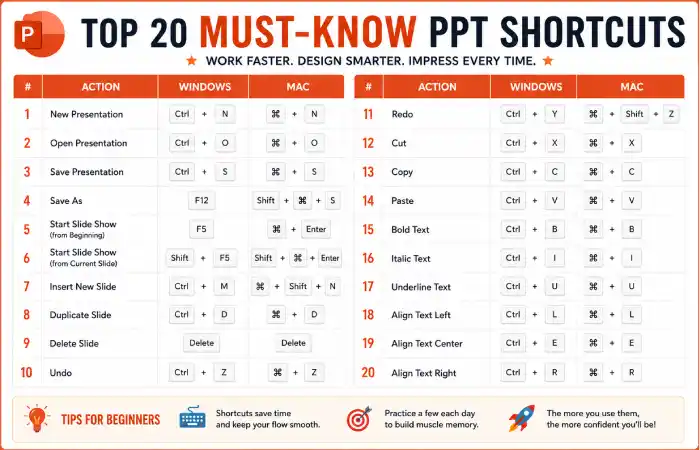
| Shortcut | Function |
| Ctrl + N | New Presentation |
| Ctrl + M | New Slide |
| Ctrl + D | Duplicate |
| Ctrl + S | Save |
| Ctrl + Z | Undo |
| Ctrl + Y | Redo |
| Ctrl + C | Copy |
| Ctrl + V | Paste |
| Ctrl + F | Find |
| Ctrl + H | Replace |
| Ctrl + B | Bold |
| Ctrl + I | Italic |
| Ctrl + U | Underline |
| Ctrl + G | Group |
| Ctrl + Shift + G | Ungroup |
| F5 | Start Presentation |
| Shift + F5 | Current Slide Show |
| Esc | Exit Presentation |
| B | Black Screen |
| W | White Screen |
Microsoft PowerPoint Tips for Better Productivity
1. Learn Presentation Shortcuts First
Focus on:
- F5
- Shift + F5
- Esc
- B
- W
These are frequently used during live presentations.
2. Master Slide Creation Commands
Start using:
- Ctrl + M
- Ctrl + D
- Ctrl + Enter
3. Use the Repeat Action Shortcut
Press:
F4
to instantly repeat your last formatting action.
4. Build a Personal Cheat Sheet
Print the most-used shortcuts and keep them near your workstation.
Common PowerPoint Shortcut Problems and Fixes
Problem: F5 Doesn’t Start Presentation
Solution
Some laptops require:
Fn + F5
because function keys are assigned to hardware controls.
Problem: Shortcut Keys Not Working
Solution
Check:
- Keyboard language settings
- Office updates
- Third-party keyboard software
Problem: Ctrl + D Doesn’t Duplicate
Solution
Ensure you’re selecting a slide or object before using the shortcut.
FAQ’s
What is the shortcut key to create a new slide in PowerPoint?
Press:
Ctrl + M
to instantly insert a new slide.
How do I start a slideshow in PowerPoint?
Use:
F5
to start from the beginning.
Use:
Shift + F5
to start from the current slide.
What is the shortcut for duplicating slides?
Press:
Ctrl + D
after selecting a slide.
Which PowerPoint shortcut is most useful during presentations?
Many presenters rely on:
- F5
- Shift + F5
- B
- W
- Esc
Are PowerPoint shortcuts worth learning?
Yes. Learning shortcuts can reduce repetitive actions and significantly improve presentation-building speed.
Conclusion
It is so easy to make better presentations and present with more confidence in less time using PowerPoint shortcuts. They are obtainable from slide building and erasure through to presentation controls in live mode. By trying to remember just 20 or so shortcuts at a time, practice them on and off, adding in more difficult commands when you get the hang of it.