

Share This Article
Last Updated: June 30, 2026
A computer shortcut keys PDF is surely among the most indispensable assets for students and for anyone working on computers- be it office employees, beginners, students or professionals – aiming to be better and faster while working on any computer system.
This isn’t so as not to bother anyone to click from one option to another via the menu but shortcut keys help a user to accomplish simple operations on computers in a flick and in a fraction of seconds. Shortcut keys of a computer also help to cut, copy, delete, move and save work instantly and much faster to make every day operations on the computer quick.
This full of shortcut keys, shortcut chart, shortcut productivity, troubleshooting chart and much more for all beginners.
What Are Computer Shortcut Keys?
Computer shortcut key – Keyboard key combination that executes certain operations extremely fast.
For example:
- Ctrl + C → Copy
- Ctrl + V → Paste
- Ctrl + S → Save
- Ctrl + Z → Undo
These commands reduce mouse usage and help users’ complete tasks efficiently.
Having a keyboard shortcuts list PDF can serve as an instant reference point for users that keep near their computer.
Why Use a Computer Shortcut Keys PDF?
A downloadable shortcut guide provides several advantages:
- Faster Learning
Beginners can memorize frequently used commands without searching online repeatedly.
- Better Productivity
Keyboard shortcuts remove unnecessary clicks and improve workflow.
- Easy Revision
Students can use shortcut charts while preparing for computer exams.
- Offline Access
A PDF guide can be saved and viewed anytime without internet access.
Essential Computer Shortcut Keys List
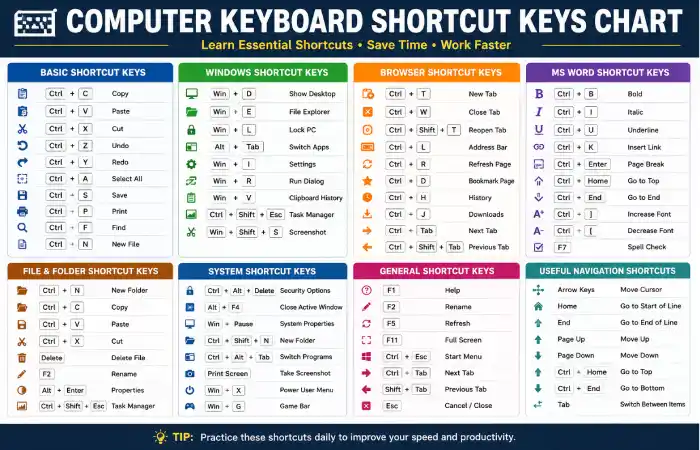
Basic Keyboard Shortcuts
| Shortcut Key | Function |
| Ctrl + C | Copy |
| Ctrl + V | Paste |
| Ctrl + X | Cut |
| Ctrl + Z | Undo |
| Ctrl + Y | Redo |
| Ctrl + A | Select All |
| Ctrl + S | Save |
| Ctrl + P | |
| Ctrl + F | Find |
| Ctrl + N | New File |
These are the most important commands included in almost every computer keyboard guide.
Windows Shortcut Keys Chart
| Shortcut | Action |
| Windows + D | Show Desktop |
| Windows + E | Open File Explorer |
| Windows + L | Lock Computer |
| Alt + Tab | Switch Apps |
| Windows + I | Settings |
| Windows + Shift + S | Screenshot |
| Ctrl + Shift + Esc | Task Manager |
| Windows + V | Clipboard History |
Windows shortcuts are especially useful for students managing assignments and online classes.
Browser Shortcut Keys
Modern learning depends heavily on browsers.
| Shortcut | Purpose |
| Ctrl + T | Open New Tab |
| Ctrl + W | Close Tab |
| Ctrl + Shift + T | Restore Closed Tab |
| Ctrl + L | Address Bar |
| Ctrl + R | Refresh |
| Ctrl + D | Bookmark |
| Ctrl + H | History |
These shortcuts help students research faster.
Microsoft Word Shortcut Keys
For writing assignments and reports:
| Shortcut | Function |
| Ctrl + B | Bold |
| Ctrl + I | Italic |
| Ctrl + U | Underline |
| Ctrl + K | Insert Link |
| Ctrl + Enter | Page Break |
| F7 | Spell Check |
These shortcuts save time while preparing documents.
Computer Shortcut Keys Productivity Comparison (2026)
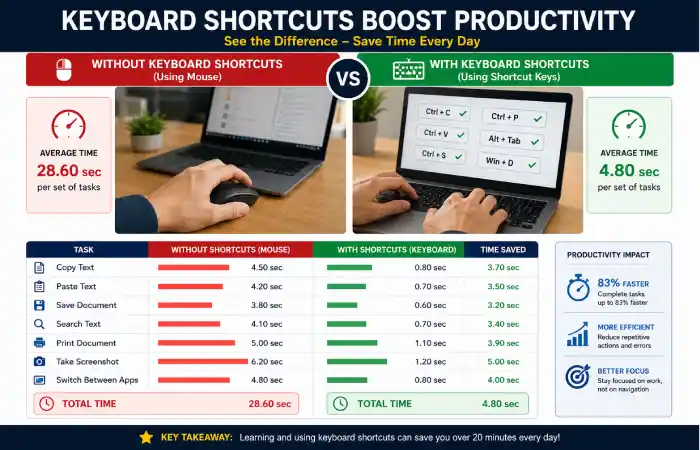
Research-based productivity testing shows that repeated mouse navigation creates unnecessary time loss.
| Task | Without Shortcut | With Shortcut |
| Copy Text | 4–5 seconds | Less than 1 second |
| Save Document | 3 seconds | Instant |
| Search Text | 4 seconds | 1 second |
| Switch Apps | 4 seconds | 1 second |
| Screenshot | 6 seconds | 2 seconds |
Estimated Daily Improvement
| Usage Level | Time Saved |
| Beginner Users | 5–10 minutes/day |
| Regular Students | 15–20 minutes/day |
| Advanced Users | 30+ minutes/day |
Shortcut Keys PDF for Students and Beginners
Students can use shortcut guides for:
- Computer basics exams
- Online learning
- Assignments
- Presentations
- Research work
- Coding practice
A printable shortcut keys chart helps beginners develop strong computer skills.
How to Create Your Own Computer Notes PDF
You can create personalized notes by including:
- Basic shortcut keys
- Browser commands
- Word shortcuts
- Excel shortcuts
- Screenshot shortcuts
- File management commands
Organizing shortcuts by category makes learning easier.
Troubleshooting Keyboard Shortcut Problems
Shortcut Keys Not Working?
Try these solutions:
Restart the Application
Some programs temporarily stop recognizing shortcuts.
Check Keyboard Settings
Make sure keys are working correctly.
Disable Conflicting Software
Gaming keyboards and customization tools may block shortcuts.
Update Drivers
Outdated keyboard drivers can cause problems.
Best Way to Learn Keyboard Shortcuts
Follow this simple method:
- Learn 5 shortcuts every week
- Practice during daily computer use
- Print a shortcut chart
- Use shortcuts instead of mouse whenever possible
Regular practice creates long-term computer efficiency.
FAQ’s
Where can I get a computer shortcut keys PDF?
You can create or download a shortcut reference PDF containing basic, Windows, browser, and document shortcuts.
What are the most important computer shortcuts?
Ctrl+C, Ctrl+V, Ctrl+S, Ctrl+Z, Ctrl+F, and Alt+Tab are among the most commonly used shortcuts.
Are keyboard shortcuts difficult to learn?
No. Beginners can learn essential shortcuts within a few days through regular practice.
Do shortcut keys work on all computers?
Most common shortcuts work on Windows computers, while Mac and Chromebook systems may use different combinations.
Why should students use shortcut keys?
Shortcut keys save time, improve productivity, and make computer tasks easier.
Conclusion
A Computer Shortcut Keys PDF offers benefits beyond a mere list of directives. It offers practical lessons for learners such as students and novices as well as for professionals aiming for the optimal use of computers. Having adequate knowledge of a selection of keyboard shortcuts can help you speed up most daily routines on a computer and minimize your movements on the computer, in the process making you much better equipped with the use of digital technology and helping you master shortcut commands at a gradually.