

Share This Article
Last Updated: June 19, 2026
Among all the computer skills one could acquire, the Ctrl Shortcut Keys List comes in as one of the quickest ways to boost them. From the students in their studies and offices workers in their daily routine to a novice, with proper usage of Ctrl commands, one can do their jobs just without struggling and scrolling down the menu every single time. All those easy shortcuts Ctrl + C and Ctrl + V that can save you precious few hours in a day would certainly count with a list of these ctrl shortcut keys as there are hundreds of shortcut key.
In the guide, there are all about Ctrl commands, Ctrl keyboard shortcut, Ctrl A to Z command list, use of Ctrl command and examples of ctrl command, productivity difference with ctrl command and, troubleshooting of ctrl command.
What Are Ctrl Shortcut Keys?
The Ctrl shortcut key: CTRL combination is a keyboard shortcut composed by which pressing of the control (CTRL) keyboard button plus combination with some other button on the keyboard in order to trigger a particular function.
Examples:
- Ctrl + C → Copy
- Ctrl + V → Paste
- Ctrl + S → Save
- Ctrl + Z → Undo
In addition, shortcut works well in the majority programs such as web browser, MSO, file management and editing software, etc.
Why Learn Ctrl Keyboard Shortcuts?
Keyboard shortcuts are not only about the speed. They improve your overall computer experience.
Benefits of Ctrl Commands
- Complete tasks faster
- Reduce mouse dependency
- Improve productivity
- Make learning computers easier
- Help students work efficiently
- Improve professional computer skills
A person who regularly uses shortcuts can save several minutes every day on repetitive actions.
Complete Ctrl Shortcut Keys List A to Z
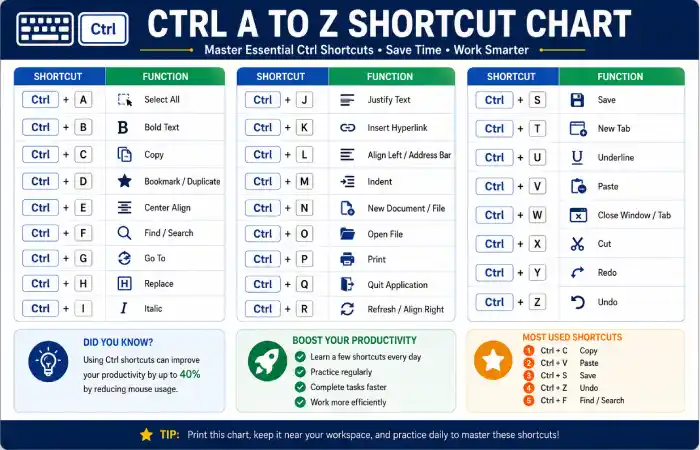
Ctrl A to Z Shortcut Chart
| Shortcut | Function |
| Ctrl + A | Select All |
| Ctrl + B | Bold Text |
| Ctrl + C | Copy |
| Ctrl + D | Bookmark / Duplicate |
| Ctrl + E | Center Align |
| Ctrl + F | Find/Search |
| Ctrl + G | Go To |
| Ctrl + H | Replace |
| Ctrl + I | Italic |
| Ctrl + J | Justify Text |
| Ctrl + K | Insert Hyperlink |
| Ctrl + L | Align Left / Address Bar |
| Ctrl + M | Indent |
| Ctrl + N | New Document |
| Ctrl + O | Open File |
| Ctrl + P | |
| Ctrl + Q | Quit Application |
| Ctrl + R | Refresh / Align Right |
| Ctrl + S | Save |
| Ctrl + T | New Tab |
| Ctrl + U | Underline |
| Ctrl + V | Paste |
| Ctrl + W | Close Window |
| Ctrl + X | Cut |
| Ctrl + Y | Redo |
| Ctrl + Z | Undo |
This Ctrl A to Z list includes the most commonly used keyboard control shortcuts.
Most Useful Ctrl Shortcuts for Students
Students frequently use computers for assignments, research, and online learning.
| Shortcut | Student Use |
| Ctrl + C | Copy notes |
| Ctrl + V | Paste information |
| Ctrl + F | Find topics quickly |
| Ctrl + S | Save assignments |
| Ctrl + Z | Fix mistakes |
| Ctrl + P | Print documents |
| Ctrl + A | Select notes |
These common Ctrl keys improve study workflow.
Ctrl Shortcuts for Browsers
Internet research becomes faster with browser shortcuts.
| Shortcut | Function |
| Ctrl + T | Open New Tab |
| Ctrl + W | Close Tab |
| Ctrl + Shift + T | Restore Closed Tab |
| Ctrl + L | Select URL |
| Ctrl + R | Reload Page |
| Ctrl + D | Save Bookmark |
| Ctrl + H | History |
Ctrl Shortcuts for Microsoft Word
For writing reports and documents:
| Shortcut | Function |
| Ctrl + B | Bold |
| Ctrl + I | Italic |
| Ctrl + U | Underline |
| Ctrl + K | Add Link |
| Ctrl + Enter | Page Break |
| Ctrl + Home | Start Document |
| Ctrl + End | End Document |
Productivity Comparison: Using Ctrl Shortcuts vs Mouse
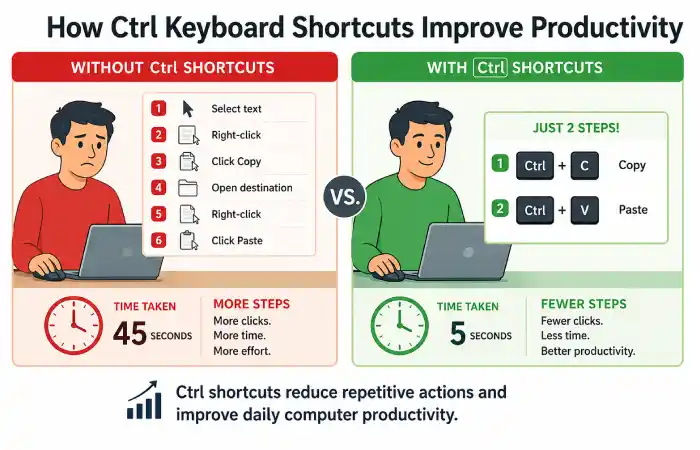
Modern computer users perform hundreds of repetitive actions daily.
| Task | Mouse Method | Ctrl Shortcut |
| Copy Text | 4 seconds | 1 second |
| Paste Content | 4 seconds | 1 second |
| Save File | 3 seconds | Instant |
| Search Text | 5 seconds | 1 second |
| Open New Tab | 3 seconds | Instant |
Estimated Daily Time Saving
| User Type | Saved Time |
| Beginner | 5–10 minutes |
| Student | 15–20 minutes |
| Professional User | 30+ minutes |
Troubleshooting Ctrl Shortcut Problems
Ctrl Key Not Working?
Try these fixes:
Check Keyboard Connection
Make sure the keyboard is properly connected.
Restart Applications
Some programs temporarily stop responding to shortcuts.
Check Accessibility Settings
Windows accessibility features may affect keyboard behavior.
Test Another Keyboard
Hardware problems can prevent Ctrl commands from working.
Best Way to Memorize Ctrl Commands
Follow these steps:
- Learn five shortcuts at a time
- Practice during daily computer use
- Keep a shortcut chart nearby
- Focus on frequently used commands
- Increase difficulty gradually
Practice is the easiest way to make shortcuts automatic.
FAQ’s
What are the most common Ctrl keyboard shortcuts?
Ctrl+C, Ctrl+V, Ctrl+S, Ctrl+Z, Ctrl+A, and Ctrl+F are among the most commonly used shortcuts.
What does Ctrl A to Z mean?
Ctrl A to Z refers to keyboard shortcut combinations using Ctrl with every alphabet key.
Are Ctrl shortcuts available on all computers?
Most Ctrl shortcuts work on Windows computers and many applications.
Can students benefit from Ctrl shortcuts?
Yes. Students can save time while writing assignments, researching, and managing files.
How long does it take to learn Ctrl shortcuts?
Most beginners can learn essential shortcuts within a few days of practice.
Conclusion
One of the most efficient ways to become a computer whiz, is to master the list of Ctrl shortcut keys. It is undeniable that shortcut keys can speed up most processes from editing files, to surfing the web. Beginning your computer learning curve with the most frequent Ctrl keyboard commands and you will steadily be able to pick up more of them. You might discover that it does not take that much of your time or effort to achieve your goal.