

Share This Article
Last Updated: June 30, 2026
Still, the document editor used by almost all users worldwide in the year 2026 is Microsoft Word. You could be a student, office professional, teacher, freelancer or business person, the MS Word Shortcut Keys PDF is of great use to make your tasks efficient and less mouse-oriented.
This guide comprises top helpful keyboard shortcuts in MS Word, mutual Microsoft computer Word commands with complete similes, tables, troubleshooting steps, a suggestion on downloading a PDF and word tricks you’ll find helpful.
Why Use MS Word Upright Shortcuts?
Keyboard shortcuts help users:
- Save time
- Improve document editing speed
- Reduce repetitive mouse movements
- Increase productivity
- Navigate large documents efficiently
Keyboard shortcuts are available through the Word count 365, Word 2024, Word 2021 and Word for the Web, according to the Microsoft certification.
Most Popular MS Word Shortcut Keys
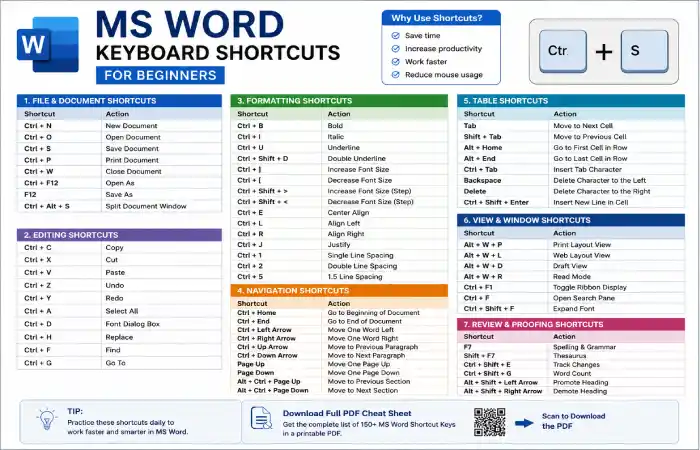
| Shortcut | Function |
| Ctrl + N | New document |
| Ctrl + O | Open document |
| Ctrl + S | Save document |
| Ctrl + P | Print document |
| Ctrl + C | Copy |
| Ctrl + X | Cut |
| Ctrl + V | Paste |
| Ctrl + Z | Undo |
| Ctrl + Y | Redo |
| Ctrl + A | Select all |
These are the shortcuts most users rely on daily.
Text Formatting Shortcut Keys
| Shortcut | Action |
| Ctrl + B | Bold |
| Ctrl + I | Italic |
| Ctrl + U | Underline |
| Ctrl + Shift + D | Double underline |
| Ctrl + Shift + > | Increase font size |
| Ctrl + Shift + < | Decrease font size |
| Ctrl + E | Center align |
| Ctrl + L | Left align |
| Ctrl + R | Right align |
| Ctrl + J | Justify text |
Navigation Shortcuts
When working with lengthy reports or assignments, navigation shortcuts become essential.
| Shortcut | Function |
| Ctrl + Home | Beginning of document |
| Ctrl + End | End of document |
| Ctrl + Left Arrow | Previous word |
| Ctrl + Right Arrow | Next word |
| Ctrl + Page Up | Previous page |
| Ctrl + Page Down | Next page |
| F5 | Go To dialogue |
Find and Replace Commands
| Shortcut | Function |
| Ctrl + F | Find |
| Ctrl + H | Replace |
| Ctrl + G | Go To |
These shortcuts are predominantly utilized during the process of editing academic papers, business reports and lengthy documents.
Table Editing Shortcuts
| Shortcut | Function |
| Tab | Next cell |
| Shift + Tab | Previous cell |
| Alt + Home | First cell in row |
| Alt + End | Last cell in row |
Comparison: Mouse vs Shortcut Workflow
| Task | Using Mouse | Using Shortcut |
| Save Document | 3-4 clicks | Ctrl + S |
| Copy Text | Right-click menu | Ctrl + C |
| Find Text | Multiple clicks | Ctrl + F |
| Bold Text | Ribbon selection | Ctrl + B |
| Print Document | Menu navigation | Ctrl + P |
Productivity Impact
| User Type | Estimated Time Saved |
| Student | 10-15 minutes/day |
| Office Employee | 20-40 minutes/day |
| Contented Writer | 30-60 minutes/day |
| Data Entry Operative | 20-45 minutes/day |
MS Office Shortcuts vs MS Word Shortcuts
| Feature | Word Specific | Office Wide |
| Bold | ✓ | ✓ |
| Save | ✓ | ✓ |
| ✓ | ✓ | |
| Track Changes | ✓ | ✗ |
| Styles Management | ✓ | ✗ |
| Triangulation Pane | ✓ | ✗ |
Workflow: How the Professionals Use the Shortcut Keys
Step 1
Create document using Ctrl + N.
Step 2
Write content using formatting shortcuts.
Step 3
Use Ctrl + F for quick edits.
Step 4
Apply headings and styles.
Step 5
Review document using proofing shortcuts.
Step 6
Save and export PDF.
Real-World Word Tricks
Quick Formatting Copy
Use:
Ctrl + Shift + C
Copy formatting.
Then:
Ctrl + Shift + V
Paste formatting.
Select Entire Document
Press:
Ctrl + A
Ideal before changing fonts or formatting.
Insert Hyperlink
Press:
Ctrl + K
Useful for reports and blog drafts.
Common Problems
Shortcut Keys Not Working
Possible reasons:
- Function Lock enabled
- Third-party software conflicts
- Keyboard language settings
- Custom shortcut overrides
Ctrl + S Doesn’t Save
Try:
- Verify document permissions
- Check OneDrive sync status
- Restart Microsoft Word
Formatting Looks Different
Use:
Ctrl + Spacebar
to clear character formatting.
Where to Download MS Word Shortcut Keys PDF
A good shortcut PDF should include:
- Beginner shortcuts
- Formatting commands
- Navigation commands
- Function keys
- Printing shortcuts
- Editing shortcuts
Consider creating your own printable PDF cheat sheet for quick desk reference.
Internal Linking Opportunities
Link this article to:
- Microsoft Excel Shortcut Keys PDF
- PowerPoint Shortcut Keys Guide
- Microsoft Office Productivity Tips
- Best Word Formatting Tricks
- Beginner Microsoft Office Tutorial
FAQ’S
What is the best MS Word Shortcut Keys PDF?
The best PDF includes categorized shortcuts for editing, formatting, navigation, tables, reviewing, and printing.
Are Word shortcut keys the same in Word 365?
Most common shortcuts remain unchanged across Word 365, Word 2024, Word 2021, and earlier versions.
Which shortcut is used to save a document?
Ctrl + S.
How many Microsoft Word commands should beginners learn?
Start with 20-30 important shortcuts before moving to progressive instructions.
Do MS Office shortcuts work in other Office apps?
Many of the shortcuts such as Ctrl+C, Ctrl+V, Ctrl+S, and Ctrl+P work crossways Expression, Excel, and PowerPoint.
Conclusion
Getting MS Word Shortcut Keys PDF materials is perhaps the quickest way to enhance productivity. Whatever the task-be it an assignment, report, business document, or simply an edit; a grasp on MS Word keyboard shortcuts, Microsoft Word commands, and word tricks will finally save many hours per month. Initially, you should commit a few essential shortcuts to memory, practice using them, and gradually increase your collection of shortcut combinations. Within weeks, you will wonder how you achieved before!