

Share This Article
Last Updated: June 30, 2026
Excel Shortcut Keys List (2026)
If you work with Microsoft Excel quite often then an Excel Shortcut Keys List will definitely cut many hours off your work hours per week. Using shortcut keys instead of a mouse to open menu boxes allows you to complete most of your work almost instantaneously.
Whether you are a student, accountant, data analyst, office professional or a business owner, use of shortcut keys in Excel will greatly enhance your accuracy and efficiency.
This guide explains the best Microsoft Excel shortcuts, formulas shortcuts, navigation shortcuts, format shortcuts, along with advanced Excel tips for high productivity in 2026.
Why Learn Excel Shortcut Keys?
Research into workplace efficiency has also shown that individuals using only keyboard shortcuts can perform spreadsheet tasks significantly quicker than those using only a mouse. Certain keyboard shortcuts, used regularly, may even diminish redundant actions and work more efficiently.
Benefits
✅ Faster data entry
✅ Improved accuracy
✅ Reduced repetitive clicking
✅ Better workflow efficiency
✅ Professional Excel skills
Excel Shortcut Keys List: Most Useful Shortcuts
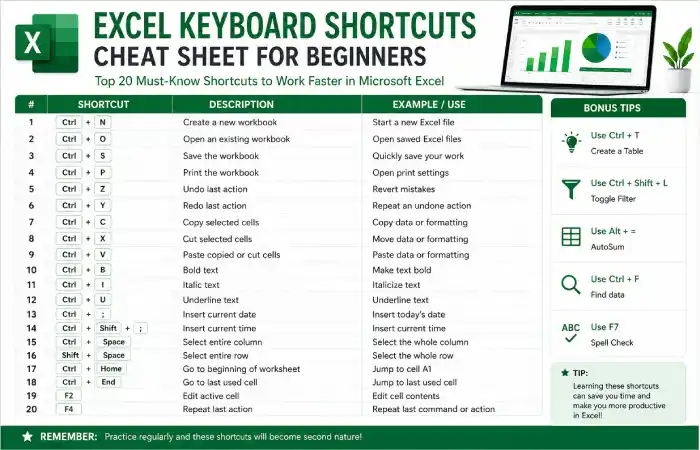
Basic Excel Shortcuts
| Shortcut | Function |
| Ctrl + N | New Workbook |
| Ctrl + O | Open Workbook |
| Ctrl + S | Save Workbook |
| Ctrl + P | |
| Ctrl + C | Copy |
| Ctrl + X | Cut |
| Ctrl + V | Paste |
| Ctrl + Z | Undo |
| Ctrl + Y | Redo |
| F1 | Help |
Navigation Shortcut Keys in Excel
| Shortcut | Action |
| Ctrl + Home | Go to Cell A1 |
| Ctrl + End | Go to Last Used Cell |
| Ctrl + Arrow Keys | Jump to Data Edge |
| Page Up | Move Up Screen |
| Page Down | Move Down Screen |
| Ctrl + Page Up | Previous Worksheet |
| Ctrl + Page Down | Next Worksheet |
These shortcuts are especially useful when working with large datasets.
Selection Shortcuts
| Shortcut | Function |
| Ctrl + A | Select All |
| Shift + Space | Select Entire Row |
| Ctrl + Space | Select Entire Column |
| Ctrl + Shift + Arrow | Select Data Range |
| Ctrl + Click | Select Multiple Cells |
Formatting Shortcut Keys
| Shortcut | Function |
| Ctrl + B | Bold |
| Ctrl + I | Italic |
| Ctrl + U | Underline |
| Ctrl + 1 | Format Cells |
| Ctrl + 5 | Strikethrough |
| Alt + H + W | Wrap Text |
Excel Formula Shortcuts
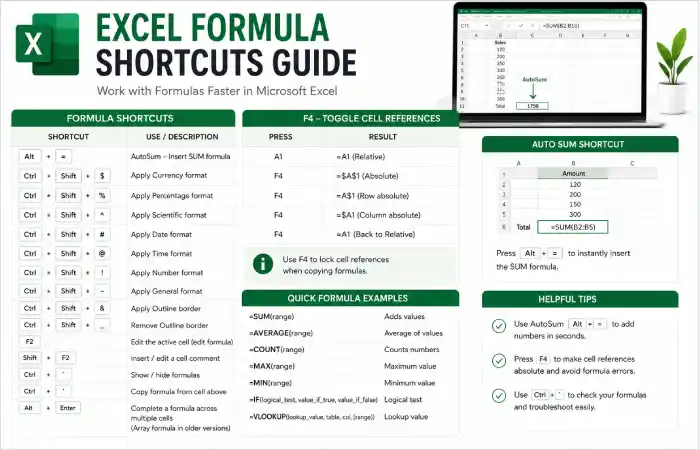
Many users search for excel formulas shortcuts because formulas are where productivity gains become significant.
| Shortcut | Purpose |
| Alt + = | AutoSum |
| F4 | Lock Cell Reference ($) |
| Ctrl + ` | Show Formulas |
| Shift + F3 | Insert Function |
| Ctrl + Shift + Enter | Array Formula (Legacy) |
| F9 | Calculate Formula |
Example
Instead of typing:
=SUM(A1:A100)
Press:
Alt + =
Excel automatically inserts the SUM formula.
Data Entry Shortcuts
| Shortcut | Action |
| Ctrl + ; | Insert Current Date |
| Ctrl + Shift + ; | Insert Current Time |
| Ctrl + D | Fill Down |
| Ctrl + R | Fill Right |
| Alt + Down Arrow | Open Dropdown |
| Ctrl + Enter | Fill Multiple Cells |
Excel Productivity Comparison Table
Mouse vs Keyboard Efficiency
| Task | Mouse Method | Shortcut Method |
| Copy & Paste | 5-6 clicks | Ctrl+C, Ctrl+V |
| AutoSum | 3-4 clicks | Alt+= |
| Format Cells | Multiple menu clicks | Ctrl+1 |
| Create Table | Several clicks | Ctrl+T |
| Apply Filter | Menu Navigation | Ctrl+Shift+L |
Result: Shortcut users can complete repetitive spreadsheet tasks much faster than menu-based workflows.
Printable Excel Cheat Sheet
Top 20 Must-Know Shortcuts
| Shortcut | Function |
| Ctrl + C | Copy |
| Ctrl + V | Paste |
| Ctrl + Z | Undo |
| Ctrl + Y | Redo |
| Ctrl + S | Save |
| Ctrl + F | Find |
| Ctrl + H | Replace |
| Ctrl + T | Create Table |
| Ctrl + Shift + L | Filter |
| Alt + = | AutoSum |
| F2 | Edit Cell |
| F4 | Repeat Action |
| Ctrl + Home | Beginning of Sheet |
| Ctrl + End | Last Cell |
| Ctrl + Arrow | Jump Data |
| Ctrl + ; | Date |
| Ctrl + Shift + ; | Time |
| Ctrl + B | Bold |
| Ctrl + 1 | Format Cells |
| Shift + Space | Select Row |
Excel Productivity Tips for Beginners
1. Learn 5 Shortcuts Per Week
Avoid memorizing 100 shortcuts at once.
2. Start With Daily Tasks
Focus on:
- Copy/Paste
- Save
- Undo
- AutoSum
- Filter
3. Create a Cheat Sheet
Print your favorite shortcuts and keep them near your desk.
4. Practice Without a Mouse
Use Excel for 15 minutes daily using keyboard commands only.
Common Excel Shortcut Problems and Fixes
Shortcut Not Working?
Problem:
F4 doesn’t lock cell references.
Solution:
Some laptops require:
Fn + F4
Problem:
Ctrl + Shift + 0 won’t unhide columns.
Solution:
Windows keyboard settings may block this shortcut. Use the Ribbon menu instead.
Problem:
Function keys trigger brightness or volume.
Solution:
Enable Function Key mode in BIOS or press Fn with the shortcut.
FAQ’s
What is the most valuable Excel shortcut?
Many people in the professional field believe that Ctrl+Arrow Keys, Ctrl+Shift+L, Alt+= are among the most effective productivity boosters.
How many Excel shortcut keys are there?
Microsoft Excel contains hundreds of built-in shortcuts covering navigation, formatting, formulas, editing, and workbook management.
What is the shortcut for AutoSum?
Press:
Alt + =
to instantly insert the SUM formula.
Which shortcut opens Format Cells?
Use:
Ctrl + 1
Is learning Excel shortcuts worth it?
Yes. Learning shortcuts can significantly improve spreadsheet efficiency and reduce repetitive work.
Conclusion
This one of the simplest methods of increasing productivity in Microsoft Excel is to practice Master an Excel Shortcuts Key List. Shortcuts for Navigation, Formatting, Formulas, Data Entry will allow you to be more accurate, faster and save precious time. Focus on these 20 shortcuts in the list to gain professional productivity in Excel and practice every day.